
Hostess Mode lets Entry Staff use their own phone or a dedicated device to handle arriving guests quickly and under control. For every scan, QRGATE evaluates the Ticket and entry rules for the event, then shows the operator a clear result.
The complete entry workflow on one screen
Hostess Mode is more than a QR reader. Entry Staff work within the QRGATE event context, so the system not only identifies the Ticket but also checks whether the guest may enter this event at this time under the configured entry rules.
RSVP shows the guest’s stated intention to attend. Check-in records that the guest actually arrived and that the system accepted their admission.
Prepare before guests arrive
Preparation is the most important part of smooth event entry. The person handling admission needs Entry Staff permission for the event, the browser must have camera access, and a short test should be completed before the doors open.
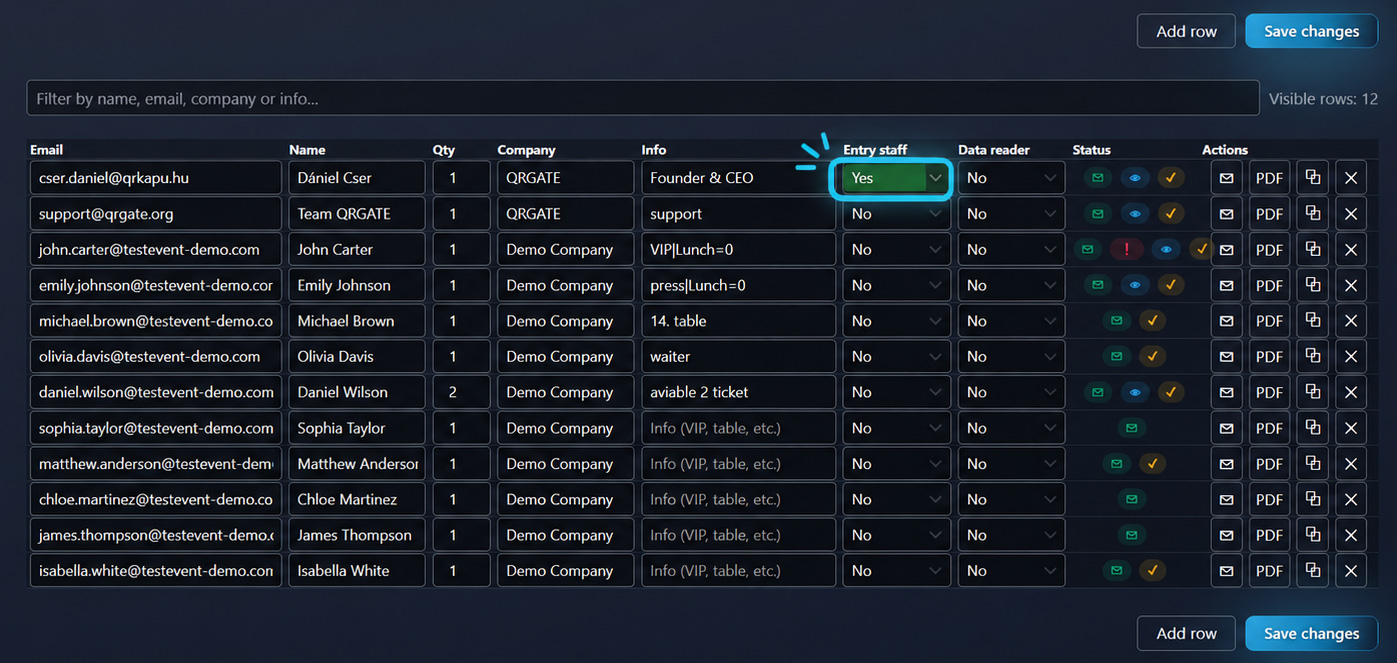
Two simple ways to start Check-in
From an authorized personal device
Entry Staff open their own QRGATE Ticket page and use the Check-in start button to launch Hostess Mode on that device.
From a dedicated phone or tablet
Open the QRGATE Check-in page for the relevant country, then scan an authorized Entry Staff QR Ticket. The system identifies the event and starts the correct Check-in session.
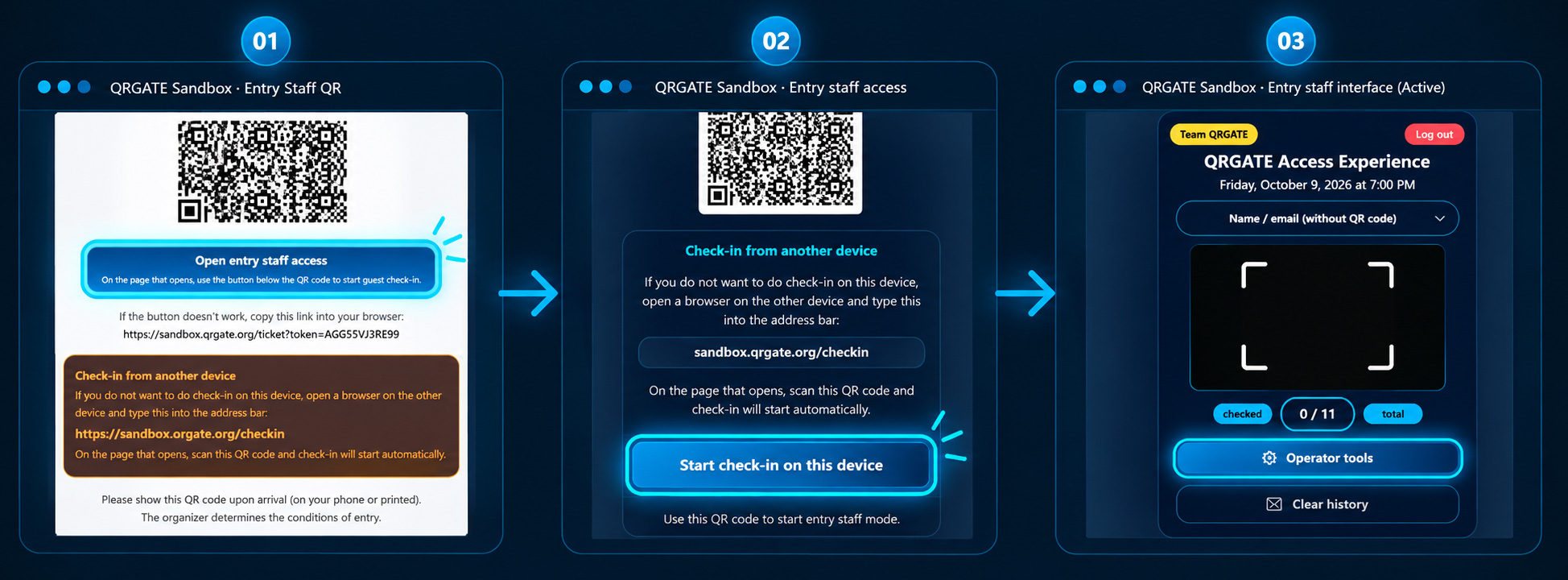
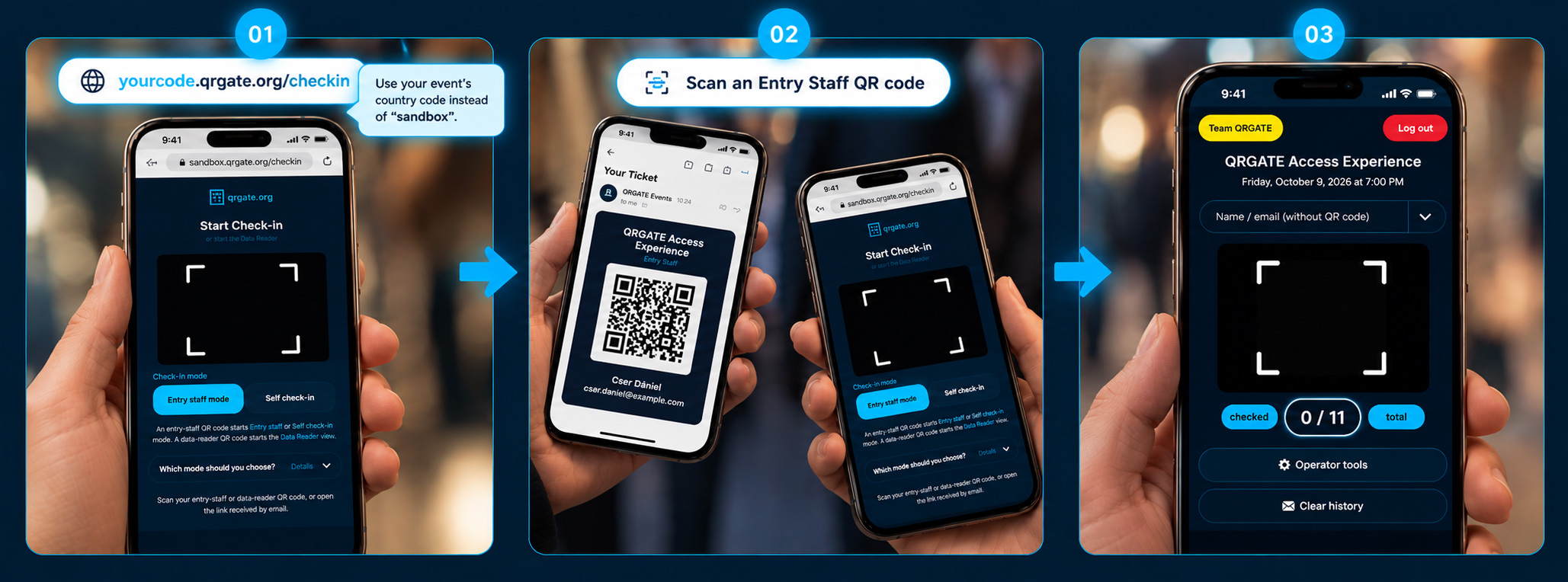
Do not publish an Entry Staff QR Ticket or use it in marketing material. Public guide screenshots must use sandbox or demo access only.
The guest presents the Ticket and Entry Staff scan it
Once Hostess Mode is open, the camera is ready to scan guest QR Tickets. The QR code may appear on the QRGATE Ticket page, on a Ticket opened from the Invitation or, where supported, in Apple Wallet or Google Wallet.
- Position the camera frame over the guest’s QR code.
- Hold the device steady while the system identifies the Ticket.
- Wait for the clear QRGATE entry result.
- Allow the guest to proceed only after a successful result.
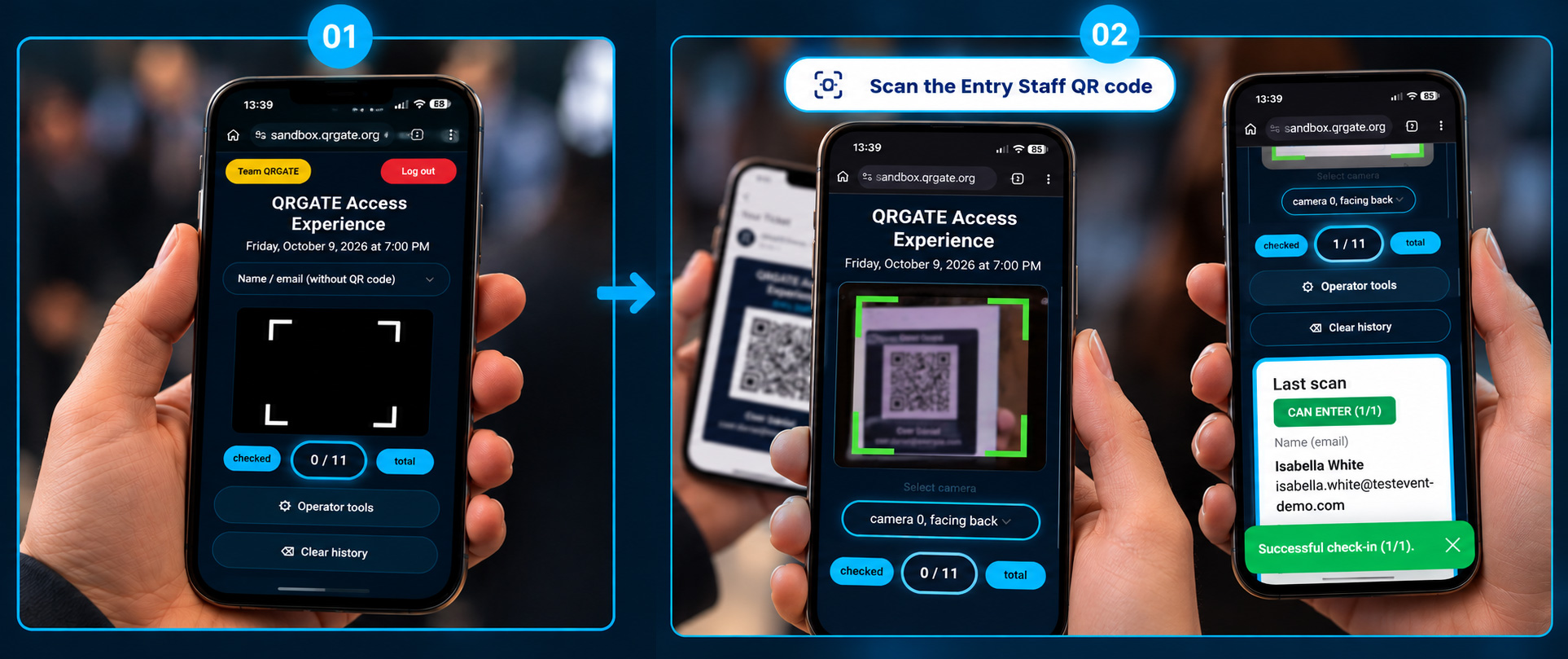
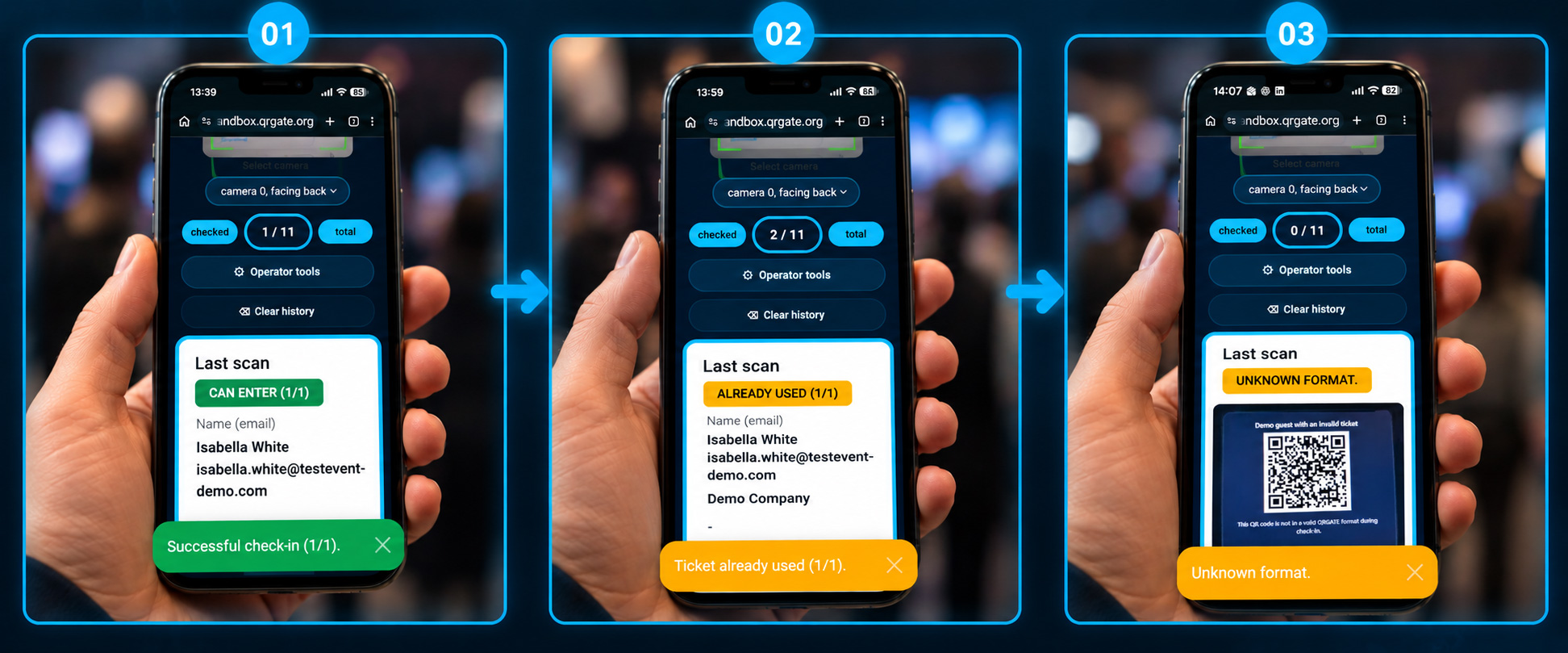
The system immediately shows whether the guest may enter
After recognizing the QR code, QRGATE checks the event, Ticket status, active Event Day and available admissions. Entry Staff do not need to verify the guest separately in a spreadsheet or on paper.
Entry allowed
QRGATE accepted the Check-in. The guest may enter and the successful admission is recorded for the event.
The Ticket cannot be used
The system indicates when a Ticket cannot be accepted, for example because no admission remains or the Ticket does not satisfy the current event rules.
No QR code? Find the guest and complete a manual Check-in
A guest may be unable to find the Invitation, may not have a phone, may not have received an email or may have been added to the Guest List without an email address. There is no need to switch to a separate paper list.
With Guest Search in Hostess Mode, Entry Staff can find the guest using the available details, select the correct result and complete Check-in within the same controlled event workflow.
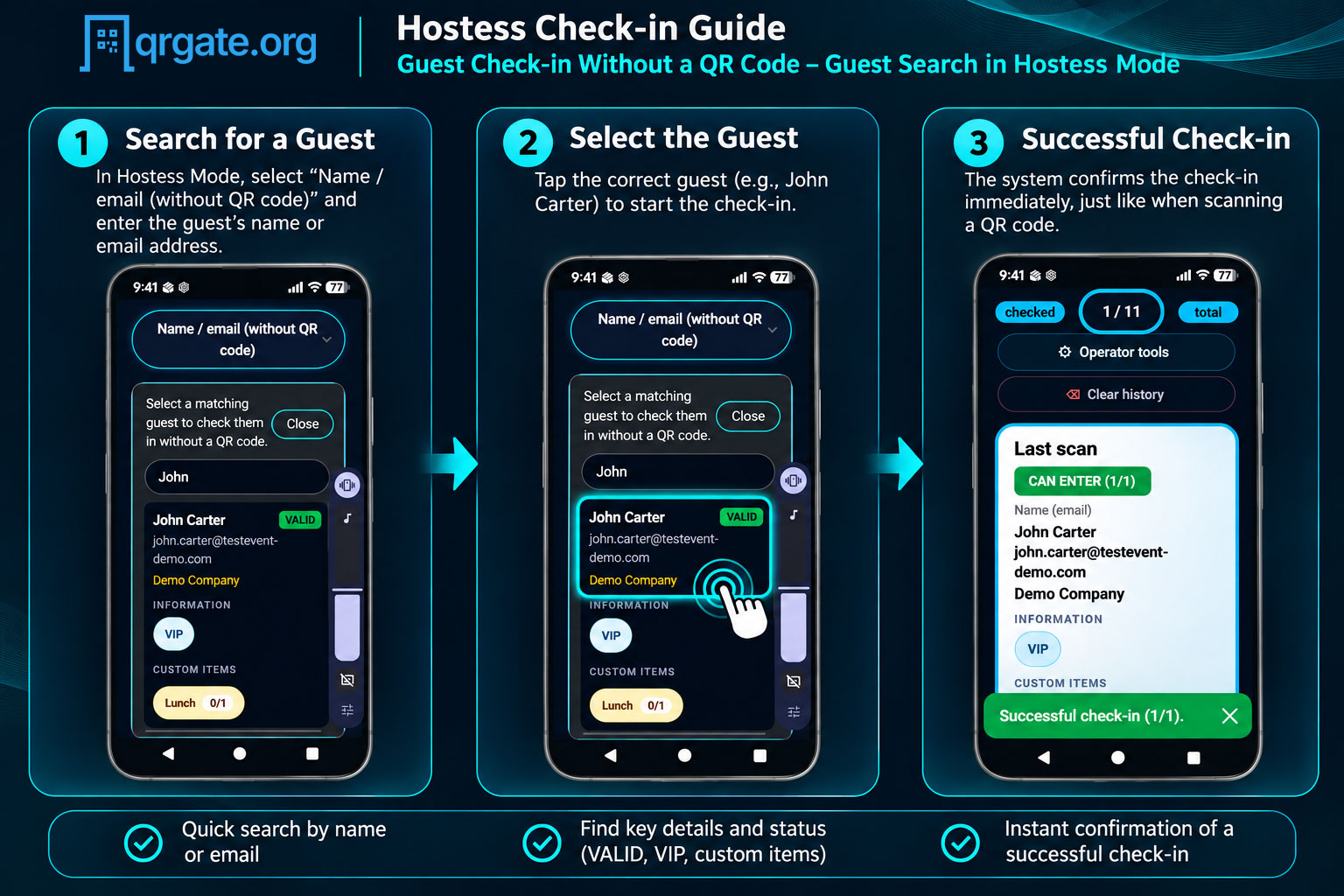
A guest without a QR Ticket does not need to be recorded separately. Admission is linked to the same Guest record as QR-based Check-in, and the same current permissions, admission allowance and status are evaluated.
One or more admissions with the same QR Ticket
QRGATE applies the entry rules for the Ticket and event. A single-entry Ticket cannot be reused without limit after a successful Check-in. If multiple admissions are allowed, the same QR Ticket can be used while an admission remains under the applicable rule.
- One QR Ticket can support multiple permitted admissions.
- The system tracks used and remaining admissions.
- For a multi-day event, eligibility can also change according to the active Event Day.
- Entry Staff do not need to remember previous admissions.
Test the complete QR entry workflow before Event Day
QRGATE lets you safely test the Check-in workflow for a future event before Event Day. You can check QR Ticket recognition, camera operation and the entry interface before the first guest arrives.
In supported Test Mode for a future event, the system displays simulated Check-in results. A test scan does not record a real admission and does not change the guest’s actual Guest List entry status.
How to test Hostess Mode
Generate all QR codes in one PDF
Open Guest list and QR tickets in the event admin and select All badges PDF (print).
QRGATE creates a printable PDF that can include guest QR Tickets and Entry Staff QR codes.
Open the generated badge PDF
The PDF presents the QR codes on clear, printable cards. Guests and Entry Staff are identified separately.
You do not need to print it for testing: display it on a computer or another device.
Scan the QR code with a mobile phone
Start Hostess Mode on the phone and allow camera access.
Point the camera at a guest QR code on the computer screen or at a printed badge.
QRGATE shows the result in the same entry interface used on Event Day.
Test without recording a real admission
When Test Mode is active for a future event, a yellow warning indicates that the Check-in is simulated.
A test scan does not consume the guest’s admission. The same QR code can be scanned repeatedly within the test allowance.
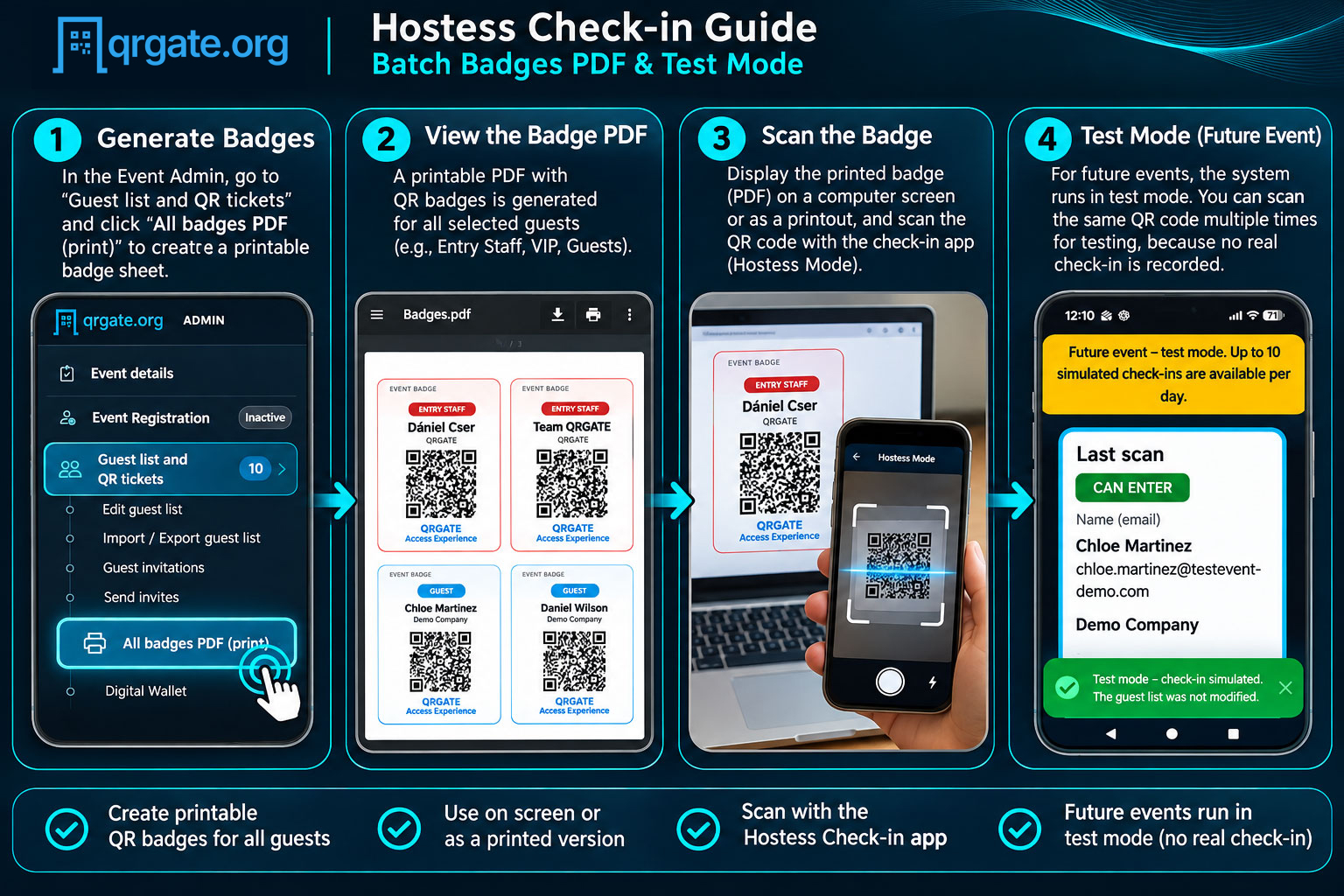
Before the event, verify Entry Staff access, camera operation, QR Ticket recognition and the team’s understanding of entry results.
A badge PDF displayed on a computer and one mobile phone are enough for Entry Staff to practice Hostess Mode.
Confirm that Hostess Mode starts, camera permission is granted, the QR Ticket is recognized, entry results are clear and Guest Search works by name or email.
For a future event, QRGATE may show a yellow Future event – test mode warning. The current supported allowance is a maximum of 10 simulated Check-ins per Event Day.
A successful test scan does not change the guest’s actual entry status. The same QR Ticket may be checked repeatedly within the test allowance.
This behavior applies only to the displayed Test Mode. Live Check-in evaluates the Ticket’s real permissions and remaining admissions. A used single-entry Ticket does not permit another admission.
Continue supported entry without internet and synchronize automatically
Internet connectivity can be interrupted at a venue. With supported Offline Check-in in QRGATE Hostess Mode, entry does not have to stop immediately. Using available local data, the system can validate QR Tickets and record supported entry operations without a connection.
Offline operation supports valid admission and detects a repeated scan of a Ticket already used on that device. When connectivity returns, QRGATE automatically attempts to synchronize pending Check-in events with the central service.
Valid Ticket: entry allowed
Supported QR Ticket validation can run without internet. If the Ticket is valid in the available local data and an admission remains, the system shows a green result and records Check-in locally.
Already used Ticket: entry rejected
If the same single-entry Ticket is scanned again while offline, QRGATE detects the prior local use. The yellow ALREADY USED result prevents another admission.
What happens when the internet returns?
QRGATE automatically attempts to send pending entry events from the device. The offline indication clears when connectivity returns, and successfully synchronized admissions enter the central record.
A used Ticket does not become reusable when online operation resumes. QRGATE continues to reject repeated admission according to the Ticket’s current permissions.
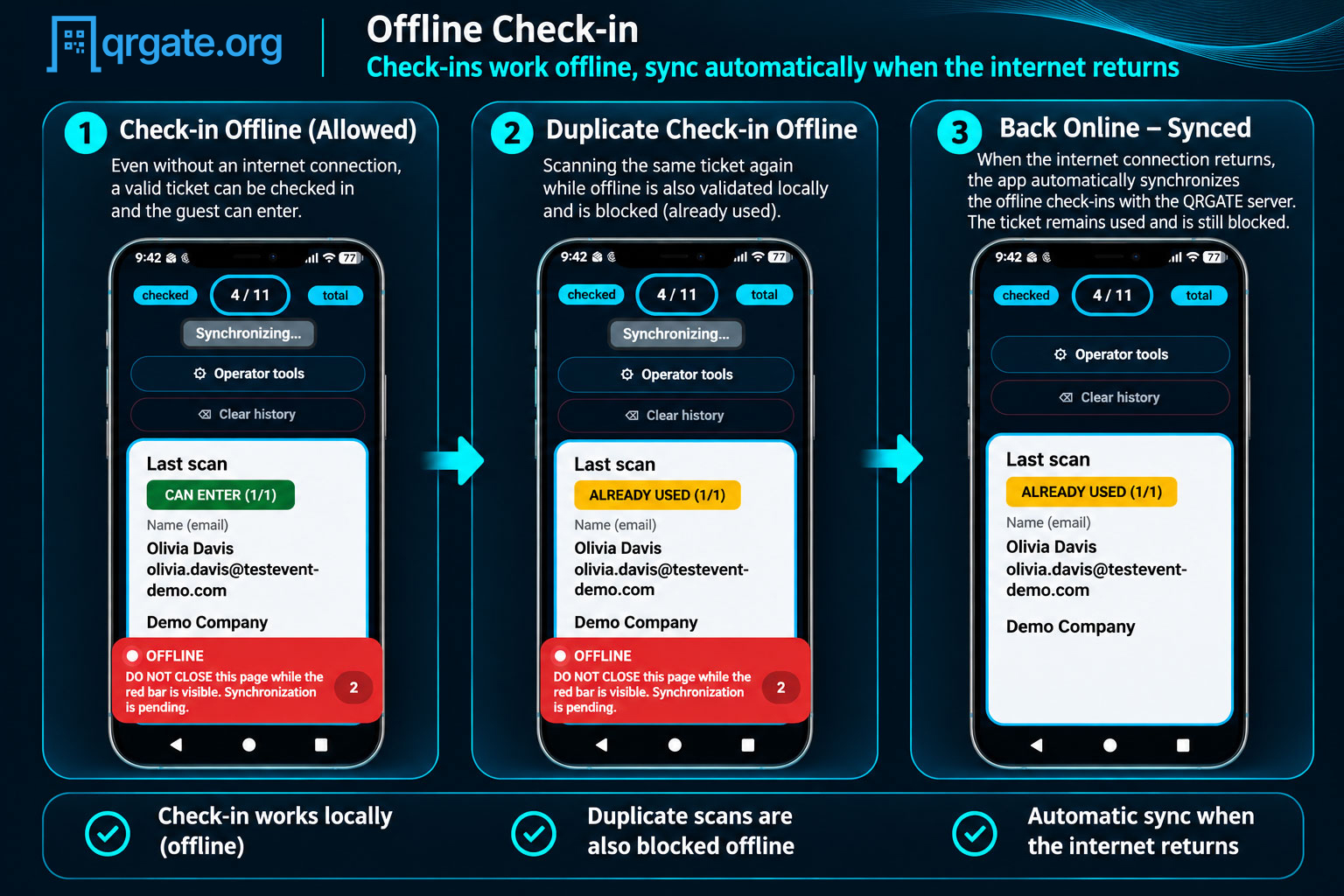
A temporary connection loss does not necessarily interrupt supported Check-in. Entry Staff can continue supported offline operations, the device checks locally recorded uses, and QRGATE attempts synchronization when connectivity returns.
A red OFFLINE bar can indicate pending synchronization. Its counter shows the number of waiting operations.
While the red warning is visible, do not close the page or clear browser data. Restore connectivity and allow synchronization to finish.
Offline Check-in does not mean every QRGATE feature works without internet. It applies to supported Check-in operations and available local data. The central service performs final reconciliation of operations made on separate disconnected devices.
Small details make a major difference on site
On first use, the browser asks for camera permission. Allow it. Some phones expose several rear cameras; if QR recognition is unreliable or the image is too wide, select the camera that captures the code most quickly and clearly.
If something does not work as expected
Check browser camera permission, then reload the page.
Select another rear camera, clean the lens and ask the guest to increase screen brightness.
Use Guest Search, select the correct guest and complete manual Check-in.
Review the QRGATE result. The Ticket may have no remaining admission.
Watch the offline and pending-sync indication. After connectivity returns, confirm that pending operations synchronized.
Confirm that the Entry Staff permission being used belongs to this event.
Five minutes before the doors open
If the test QR works, Guest Search is available and Entry Staff understand successful and rejected results, Hostess Mode is ready for Event Day.
Test the complete Check-in workflow in a demo event
Build a Guest List, generate QR Tickets, open Hostess Mode and test event entry before the live event.
Related QRGATE resources
QR event Check-in solution
See how invitation-based QR Ticket validation supports controlled guest entry.
Cloud event Check-in with Offline Mode
Understand supported local entry operations and central synchronization after connectivity returns.
Staff-assisted or Self Check-in
Choose the right entry workflow for the event and guest experience.